Step 1
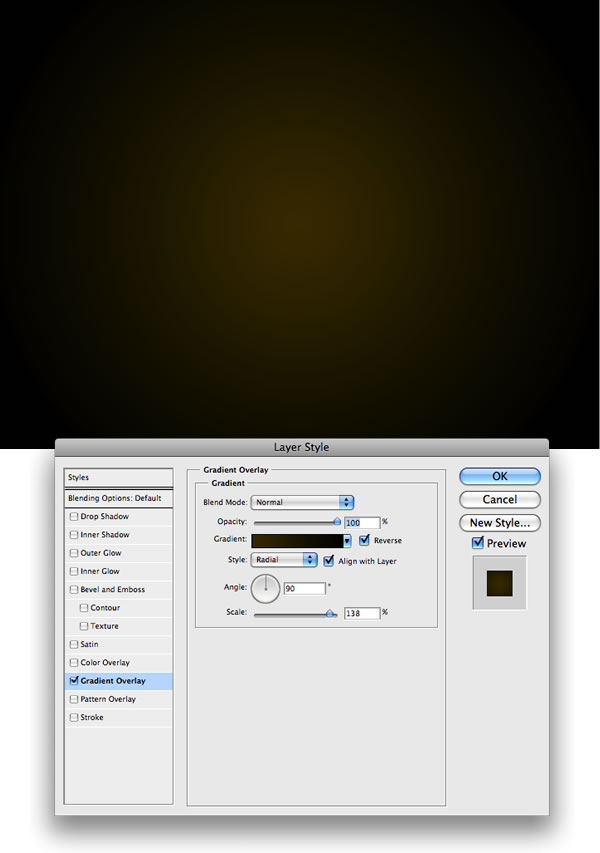
Create a new document, apply a Layer Style on the background layer. Add a Gradient Overlay from black to a dark brown (#443501).
Step 2
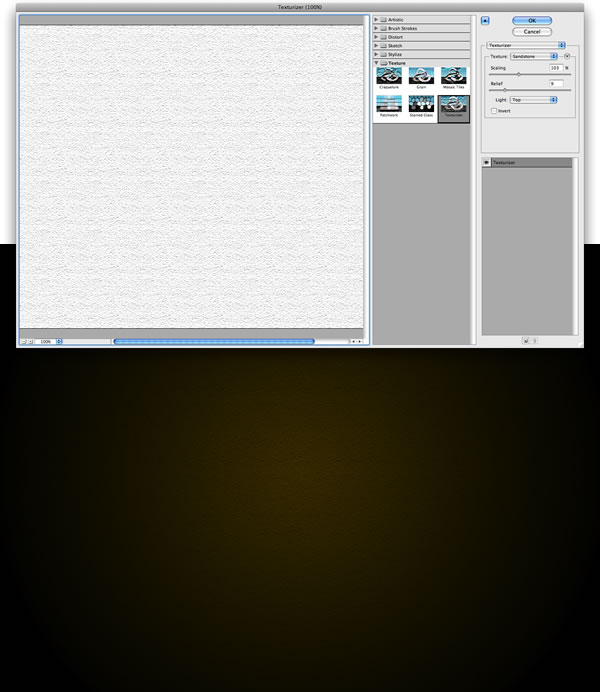
Create a new Layer and apply Filter>Texture>Texturizer. Make sure that the foreground color is white and the background is black. After that, change the Blend Mode to Multiply.
Step 3
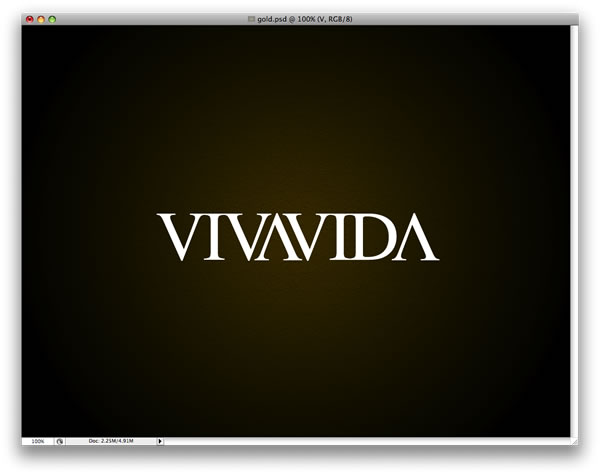
Add some text. I used Times New Roman, and for the “A” I used the “V” letter and flipped it vertically and horizontally.
Step 4
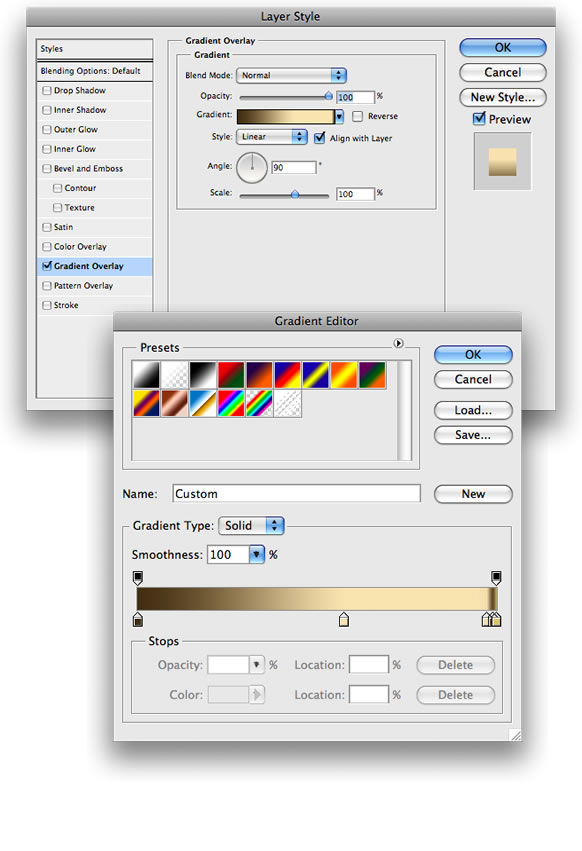
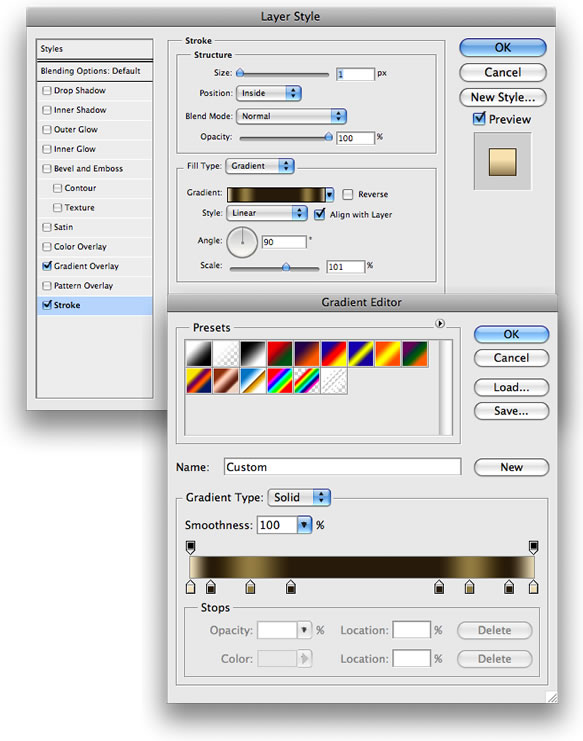
Now we start creating our gold layer style. We’ll set up the Gradient Overlay first, as shown below.
Step 5
Now we’ll add a Stroke. For the Fill Type use Gradient. The position of the gradient will vary for different typefaces, so experiment and see what looks good.
Step 6
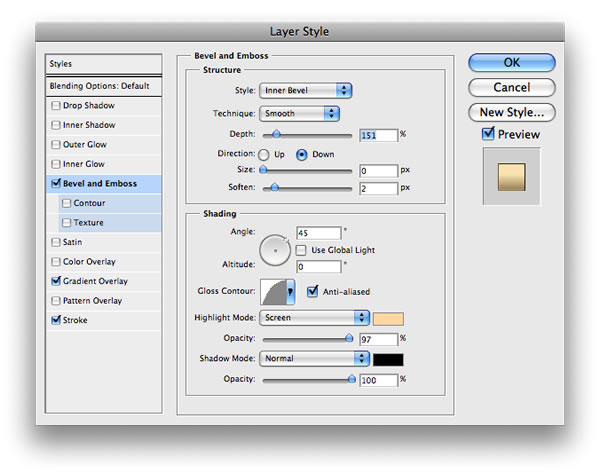
Add Bevel and Emboss, as shown below.
Step 7
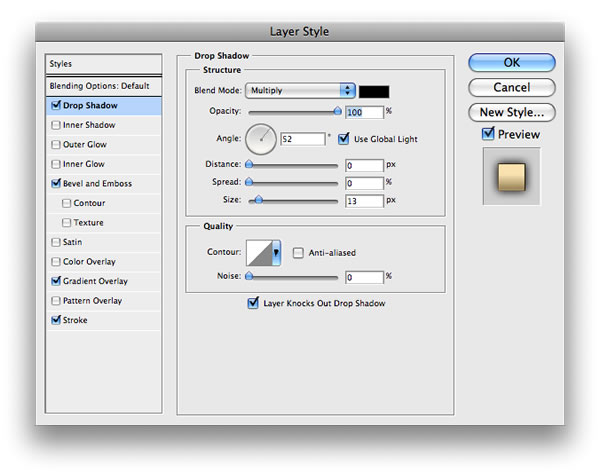
Finally, add some Shadow, again following the specs below.
Conclusion
This a very nice example of how powerful Layer Styles are in Photoshop. Sometimes just changing some values can create a totally different effect. For this tutorial I created gold, but if you change the gradient color to variations of grey you will have silver instead of gold.



Buy Photoshop 3D Text Effect, Gold Text Styles, American Football Flyer, College Football Flyer / Sunday College Football Flyer - Print Templates, On The Regular Trap Mixtape Album CD Cover Template, TRAP COVER, Realistic Football helmet Mockup, Flyer Mock-Up and lot more
ReplyDeleteFor More Information Visit Here -- Gold Text Effect